How to use Basecamp ⛺
Basecamp is the project-management tool I use. The advantage is that I can invite you in, so you always see what's being worked on and where the project stands. Here's a simple guide to get you started.
Log in to BasecampHow it'll work — admin walkthrough
- 1
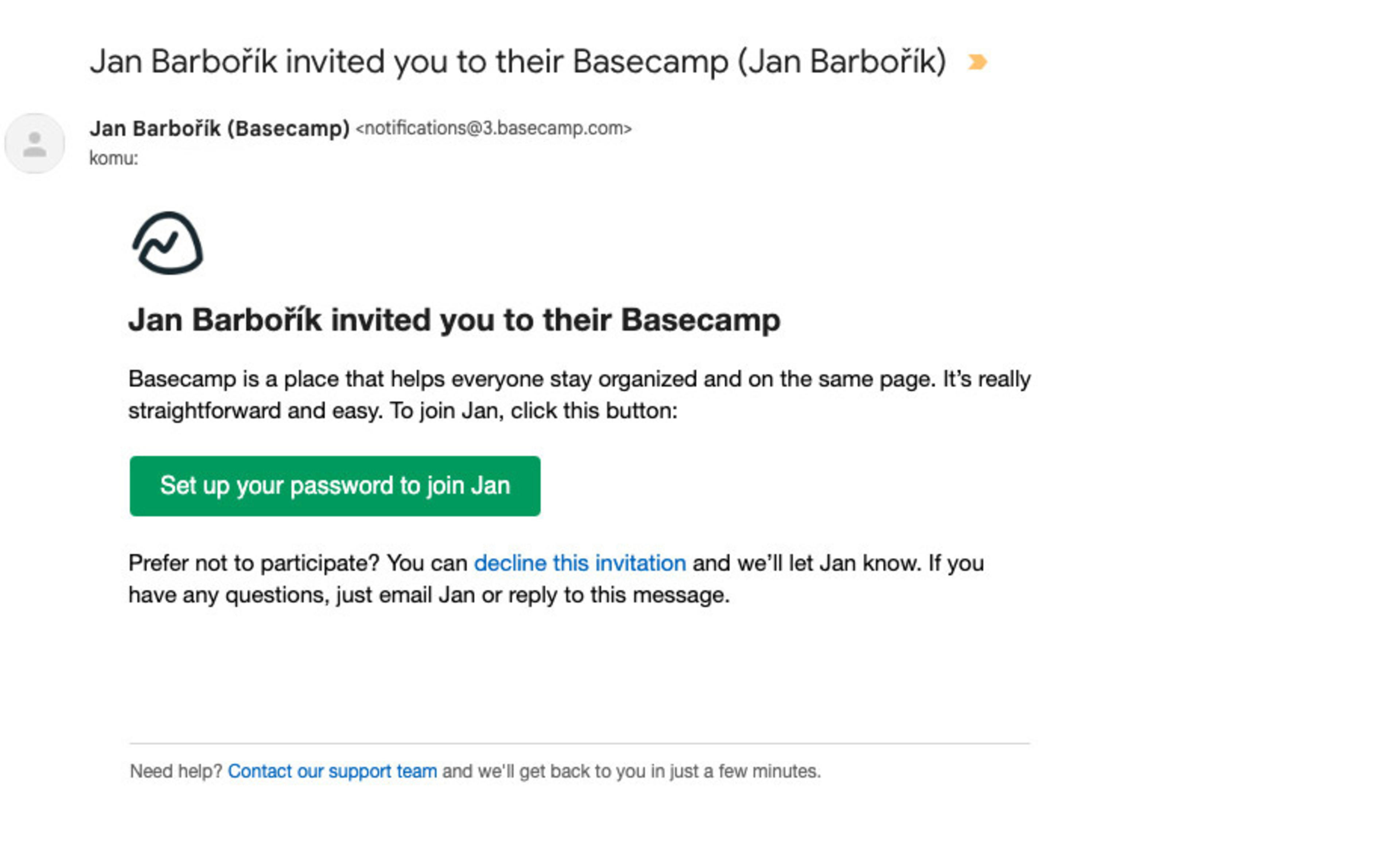
Invitation to my account
First I'll invite you into my account — you'll receive an e-mail with the invitation.
- 2
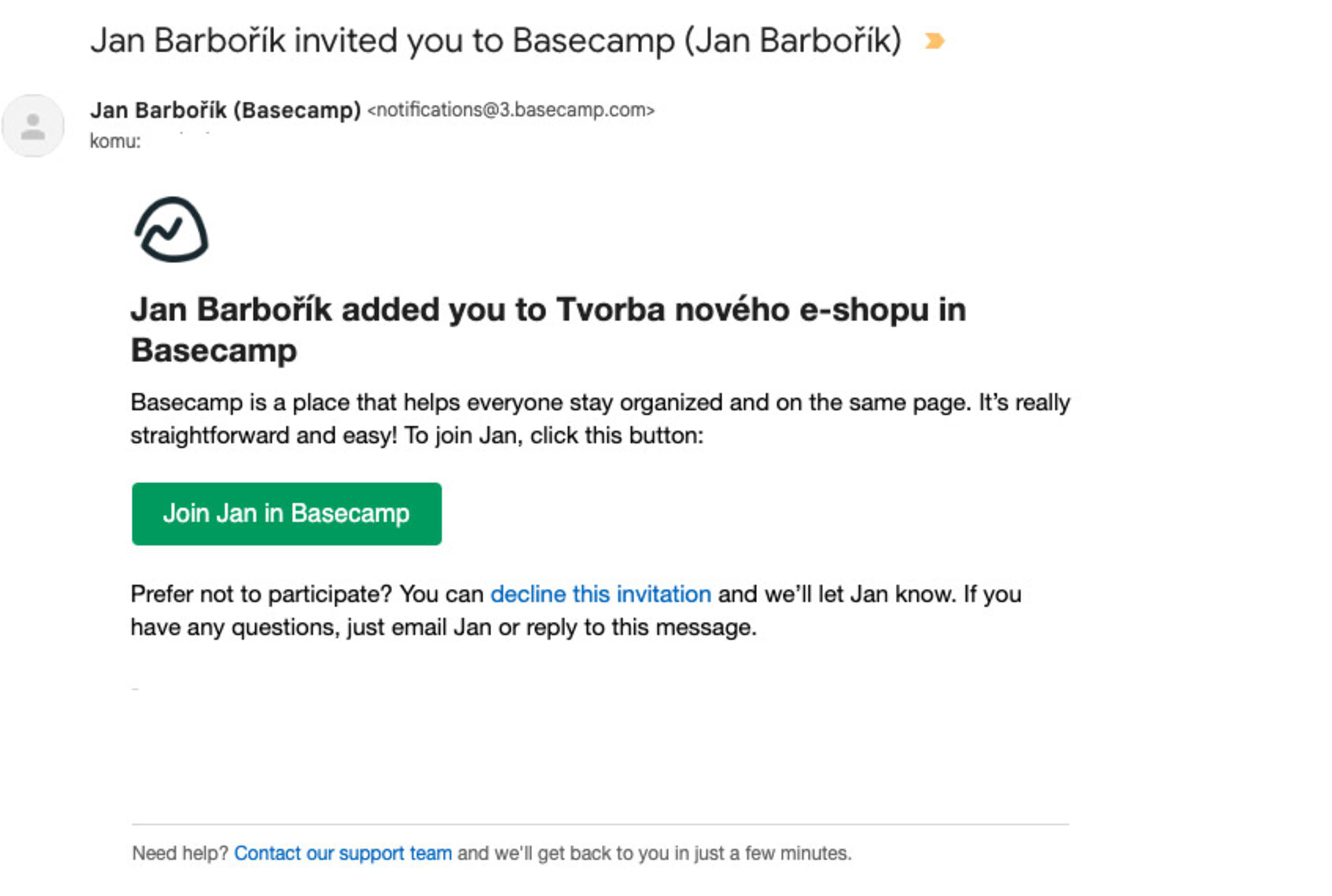
Project assignment
Right after that I'll add you to the specific project for your engagement.
- 3
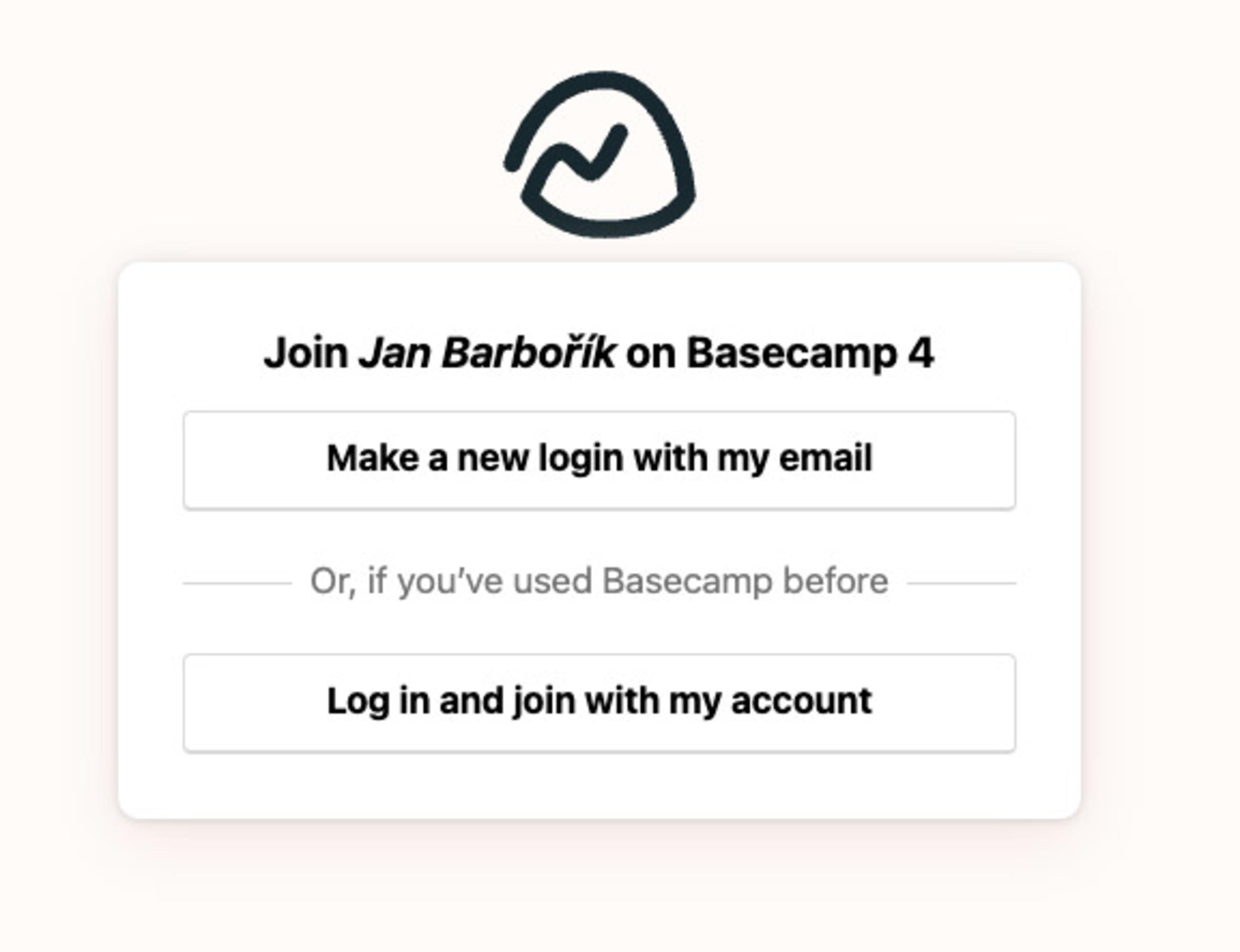
Create an account or log in
If you don't have a Basecamp account yet, create one by clicking "Make a new login with my email". Otherwise just log in.

- 4
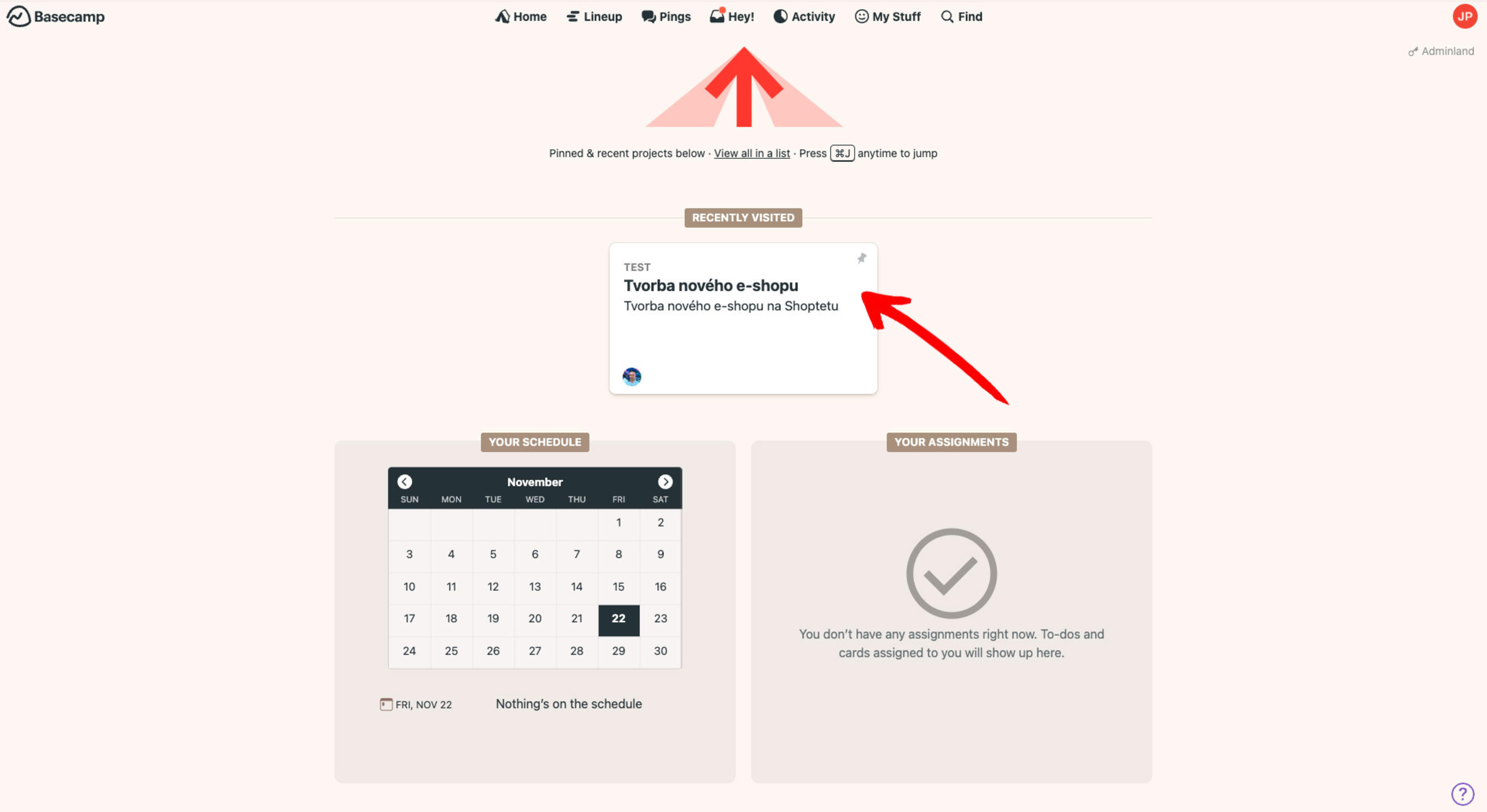
Shared project
Once logged in, you'll see the project we share. Click it to see details and follow what's happening.
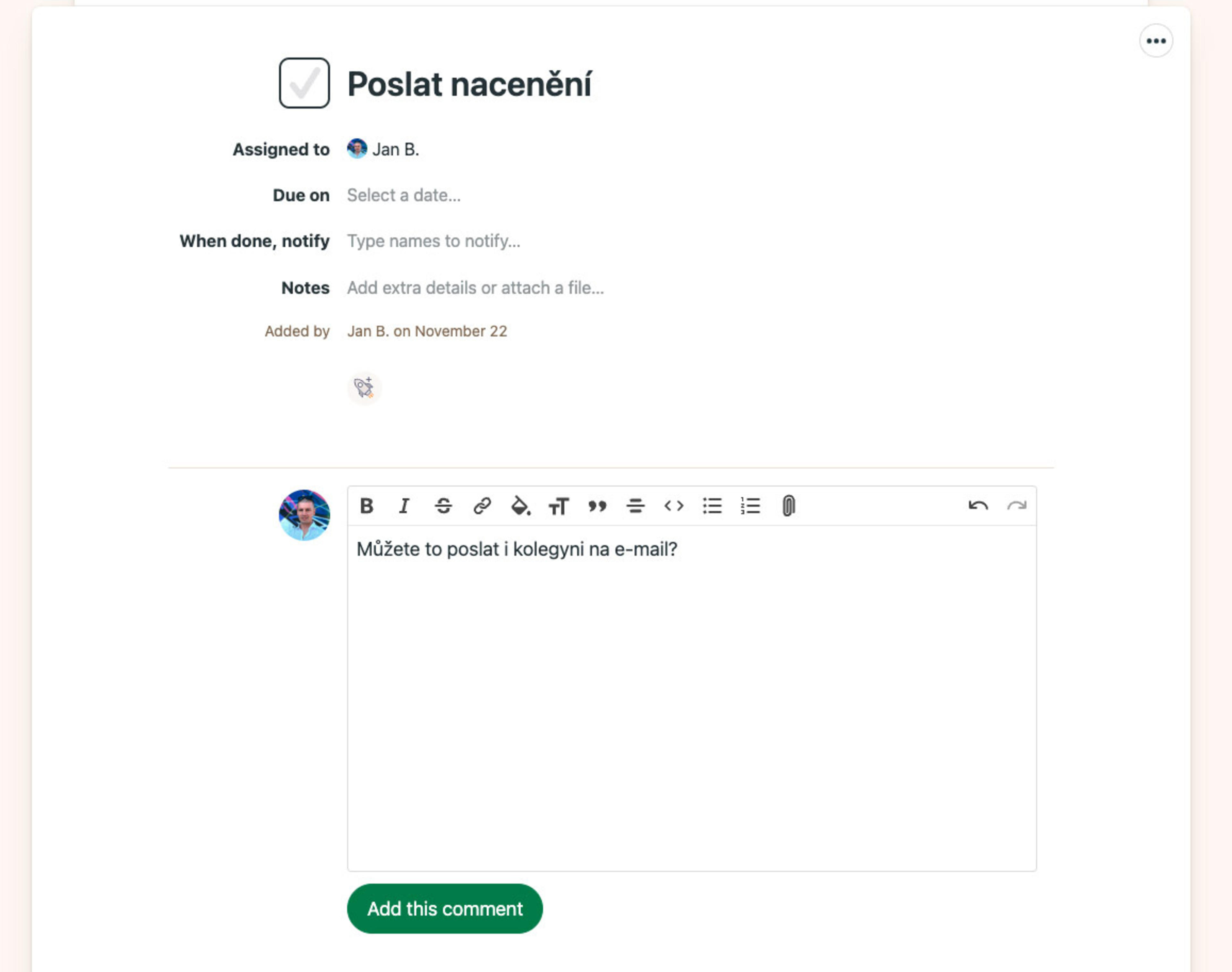
💡You can reply to comments directly from e-mail — they get posted into Basecamp. Saves time and avoids switching tabs.
- 5
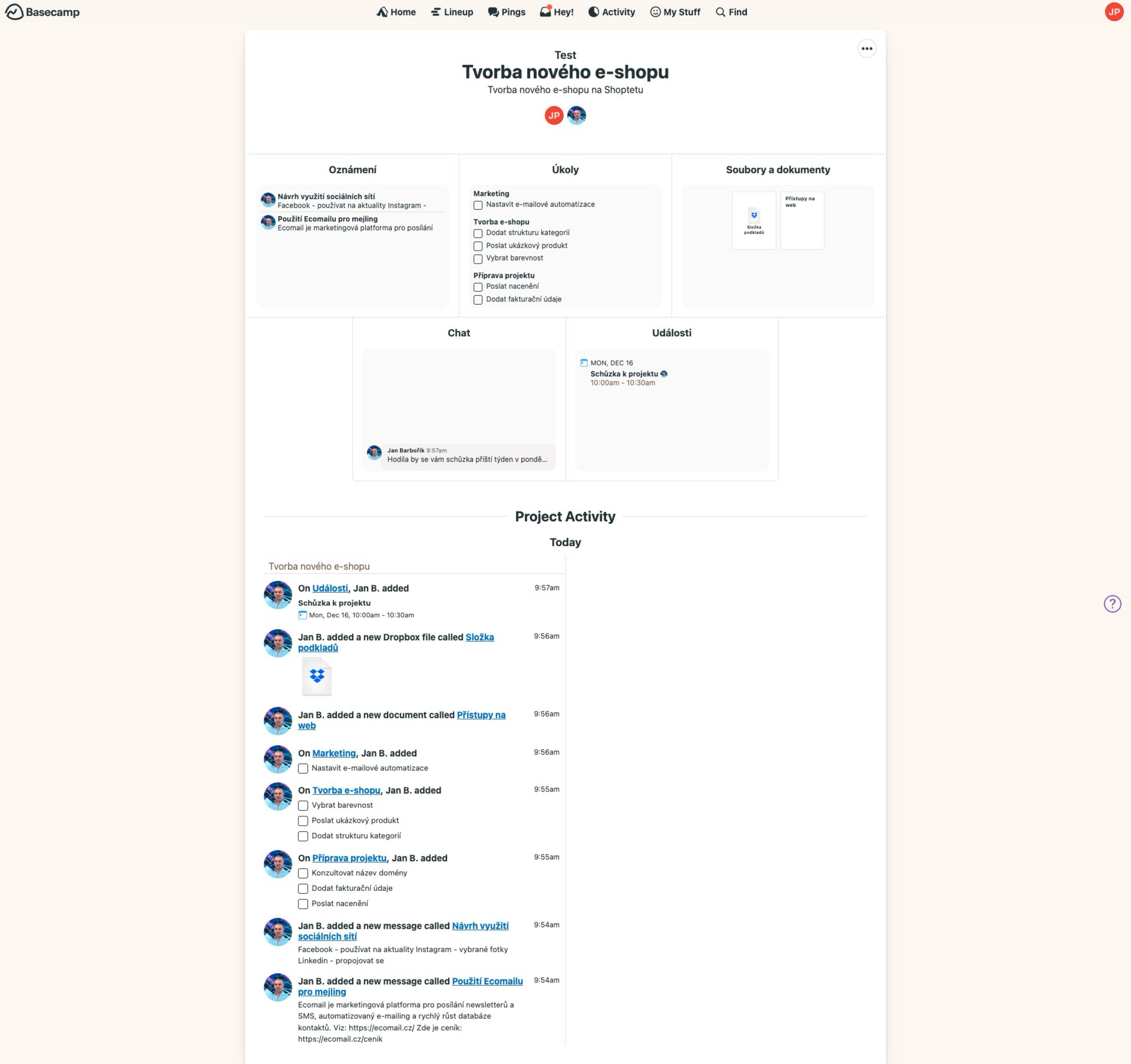
Project sections
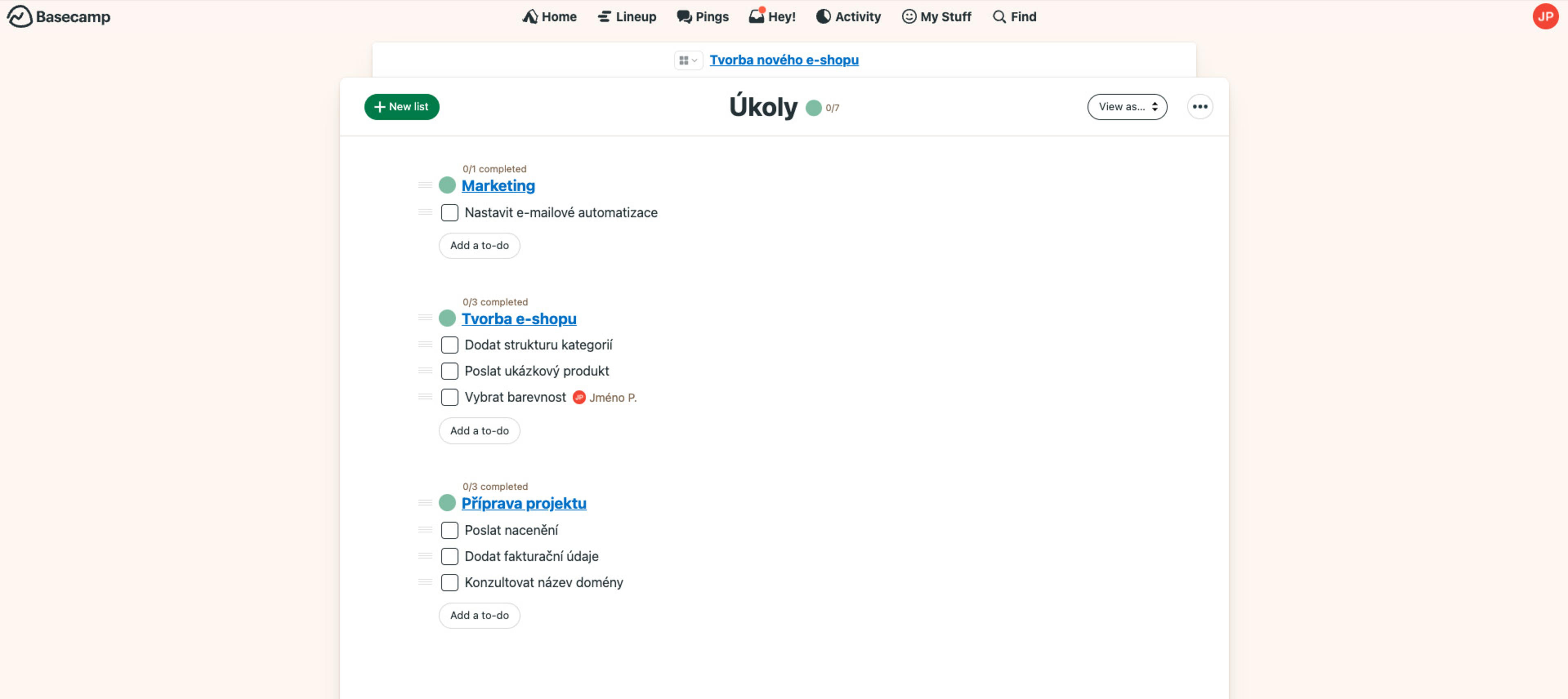
Inside the project you'll find several sections. Open each one to react, comment or add more. You'll also see the activity history. People involved in the project can be assigned to individual tasks.
- 6
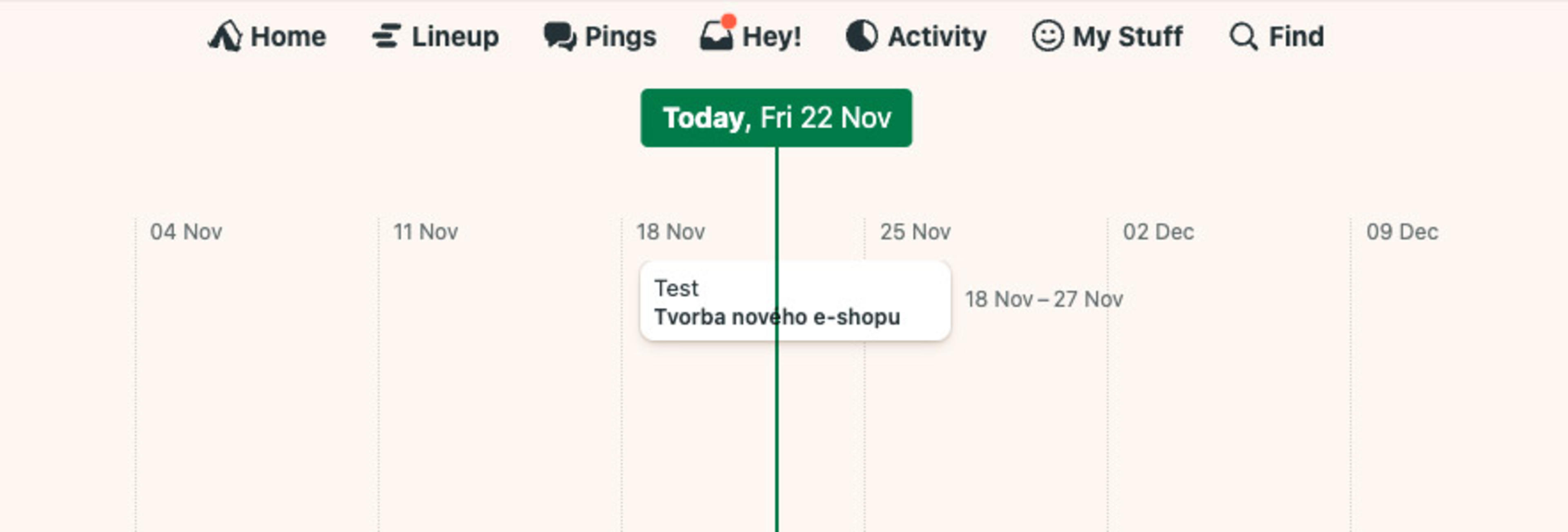
Lineup — timeline
The Lineup item in the main menu shows the timeline for the project (or projects) we have open together.
- 7
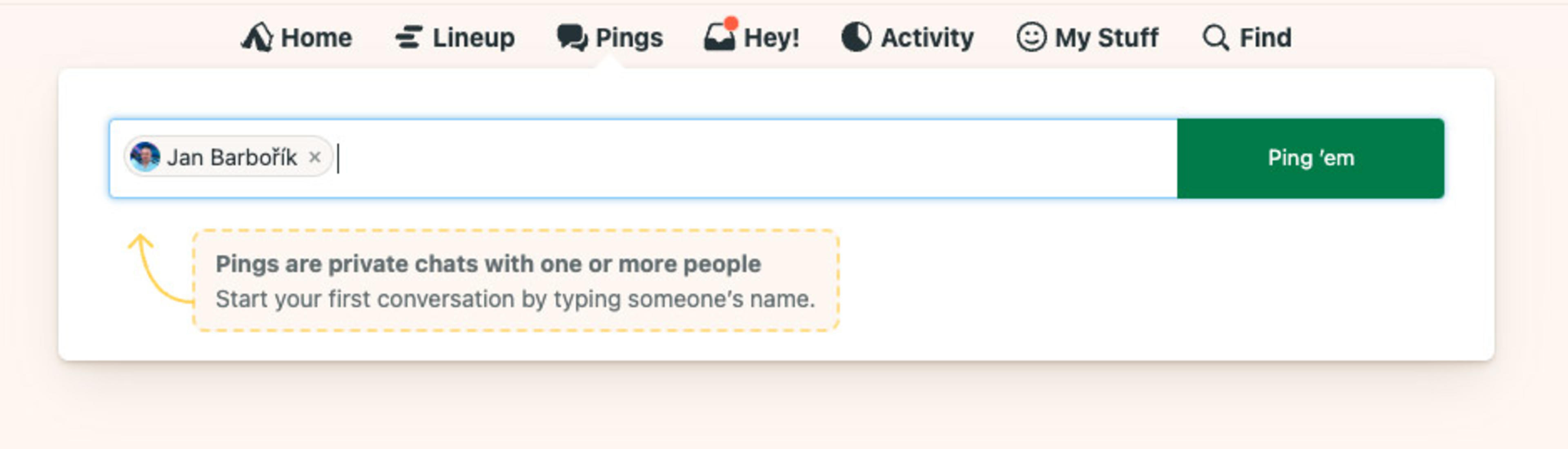
Pings — direct messages
Use Pings to send each other direct messages inside Basecamp.
- 8
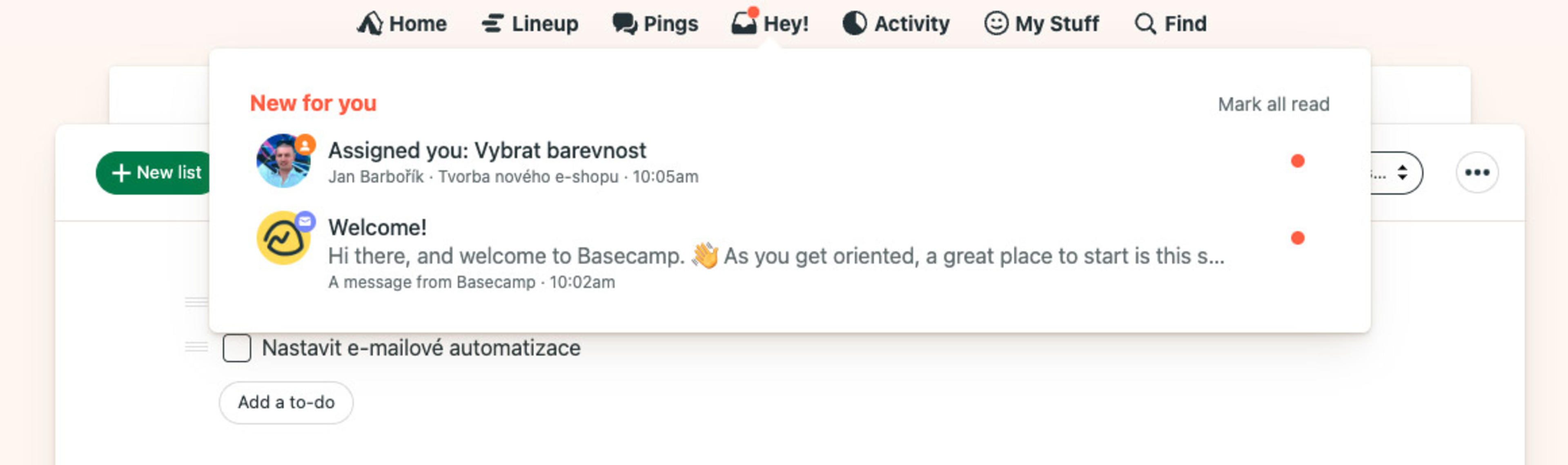
Hey! — notifications
The Hey! section holds notifications relevant to you — your tasks, mentions, events and so on.
- 9
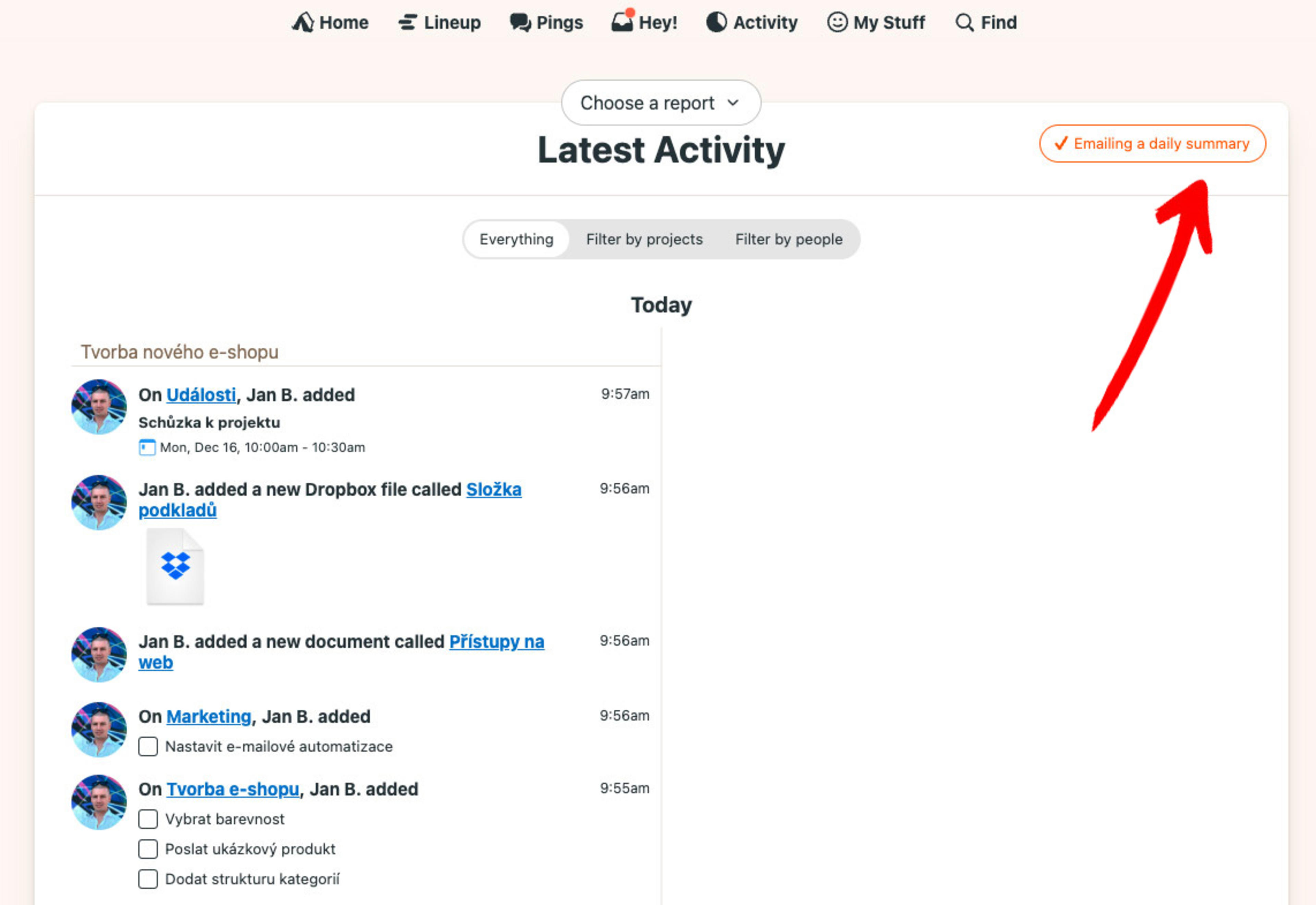
Activity — what happened when
Activity shows the timeline of events in your project. What was done, by whom and when. This summary arrives in your e-mail daily — you can turn off the e-mail with a button at the top right.
- 10
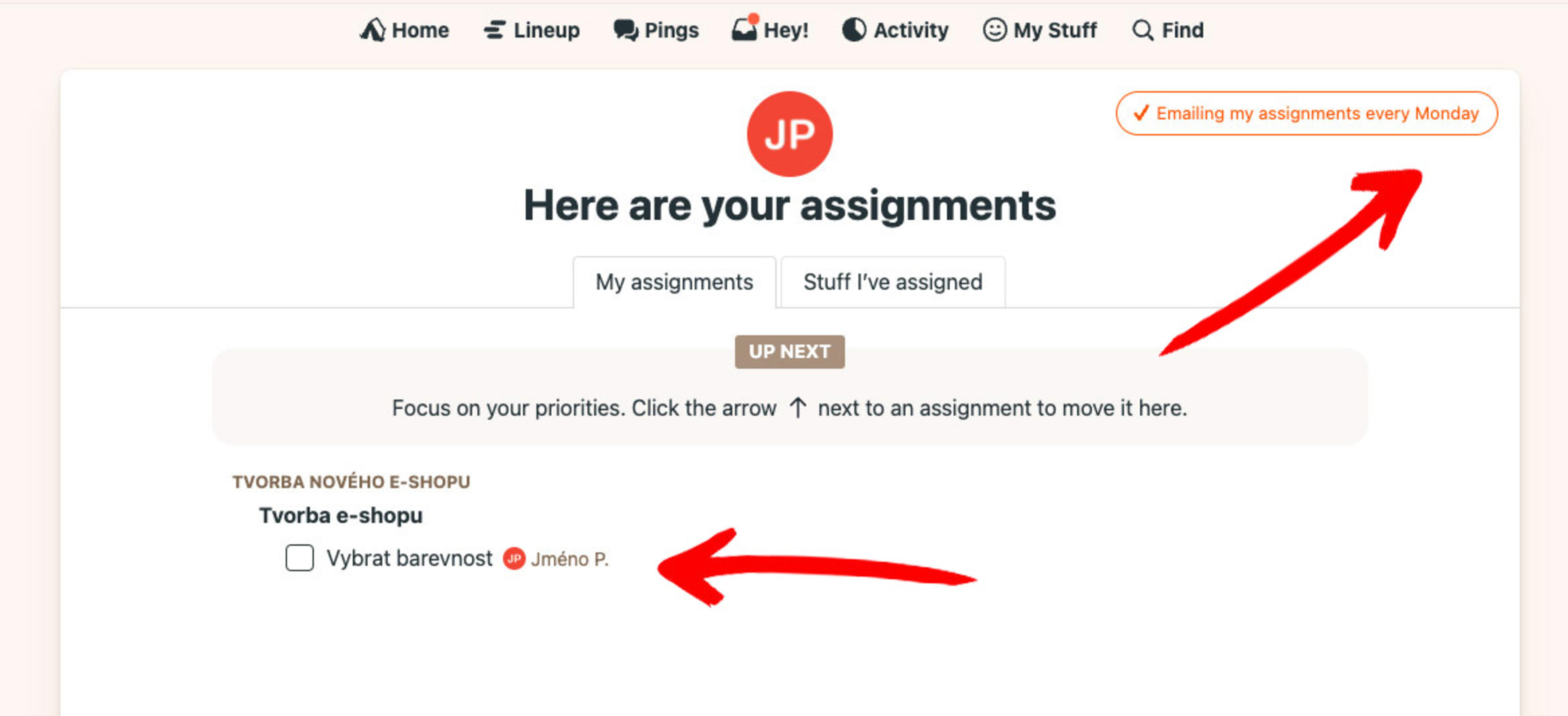
My Stuff — your tasks and priorities
My Stuff lists tasks assigned to you. Weekly summaries land in your inbox every Monday — again, the e-mail can be turned off at the top right. To set your own priorities, hover before a task row and click the arrow that appears to move it up into the highlighted area.
💡Got questions about using Basecamp? Let me know. I'll answer, schedule a video call, or record a short walkthrough video for you.